
Editing Progress Notes
If you were part of a service you can edit progress notes added to that service.
When you amend a progress note from a previous service or day, the original progress note is retained for audit purposes.
Tip:
You can continue to edit progress notes added to
today's services without triggering the progress note audit: when you open a
patient's  Clinical Record, in the Select
Service window, select
Clinical Record, in the Select
Service window, select  Yes - Open selected service.
Clinical Record, in the Select
Service window, select Yes - Open selected service.A day is a calendar day. If you write and close a progress note at 23:55 for example, you have a grace period of 5 minutes to make changes without audits appearing.
Progress note restrictions are based on the
Communicare log on username:
- Users who do not have any viewing rights cannot view, write or change any progress notes.
- Users who do not have the viewing right attached to a progress note cannot see that progress note.
- Progress notes can only be written if you log on to Communicare with a
username that identifies the provider. Anyone can write or change a progress
note on behalf of a provider who does not have a logon username.Tip:Specify a provider's username and any delegated providers in . If electronic claiming is enabled, only the Administrator or the provider can change these details.
- If a provider has a delegated user, the delegated user can also write or change the progress notes for that provider.
To edit a progress note:
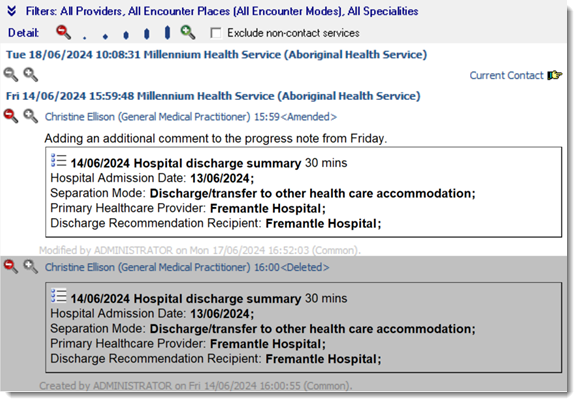
Once a service has been amended, the contact header displayed in the historical notes is prefixed with <Amended>.
To view earlier versions of the progress note, set the detail level to 5. The original
progress note is displayed with a grey background for audit purposes.
You can also print audited progress notes to the Patient Summary. For example, in the
clinical record:
- Select
 .
. - In the Patient Summary window, click Customise.
- On the Consultations tab, set both Progress Notes and Progress Notes Audit to include this information.
- Click Print.