
Reviewing and matching results
Use the  tab to review automatically matched incoming patient results, match requests
to results, and match results manually to a patient that couldn't be matched
automatically.
tab to review automatically matched incoming patient results, match requests
to results, and match results manually to a patient that couldn't be matched
automatically.
The pathology lab software sends results for download every hour or so. Results are imported by Communicare within a minute of being downloaded.
- HTML
- Text
No supported result format (plain text or PDF) sent by investigation provider- Medicare number (10 digits), date of birth and sexNote:If the HL7 file includes 11 digits for the Medicare number, including the reference number, the result will not match to the patient.
- Preferred surname (exact), preferred given names (prefix), date of birth and sex
- Any surname soundex, any given names soundex, date of birth and sex
The matched patient is approved by a clinician when reviewing the result. Results can be reviewed in the Match and Review Results window or from the patient's clinical record.
If Communicare is unable to match a result to a patient, the results must be reviewed and matched manually. Similarly, any requests with the same reference number as the result are listed in the Match and Review Results window for manual matching.
-
In the Documents and Results window, on the
Investigation Results tab, double-click a result.
Tip:To filter the results, set filter information above the table. For example, to review requests made by you, from the Provider list, select your name. For more information, see Filtering documents and results.
If the result is available in more than one format, select your preferred display format from the list.
Results are displayed in the left pane and the patient and request information in the right pane. Any qualifiers associated with the results are displayed in the lower left pane.
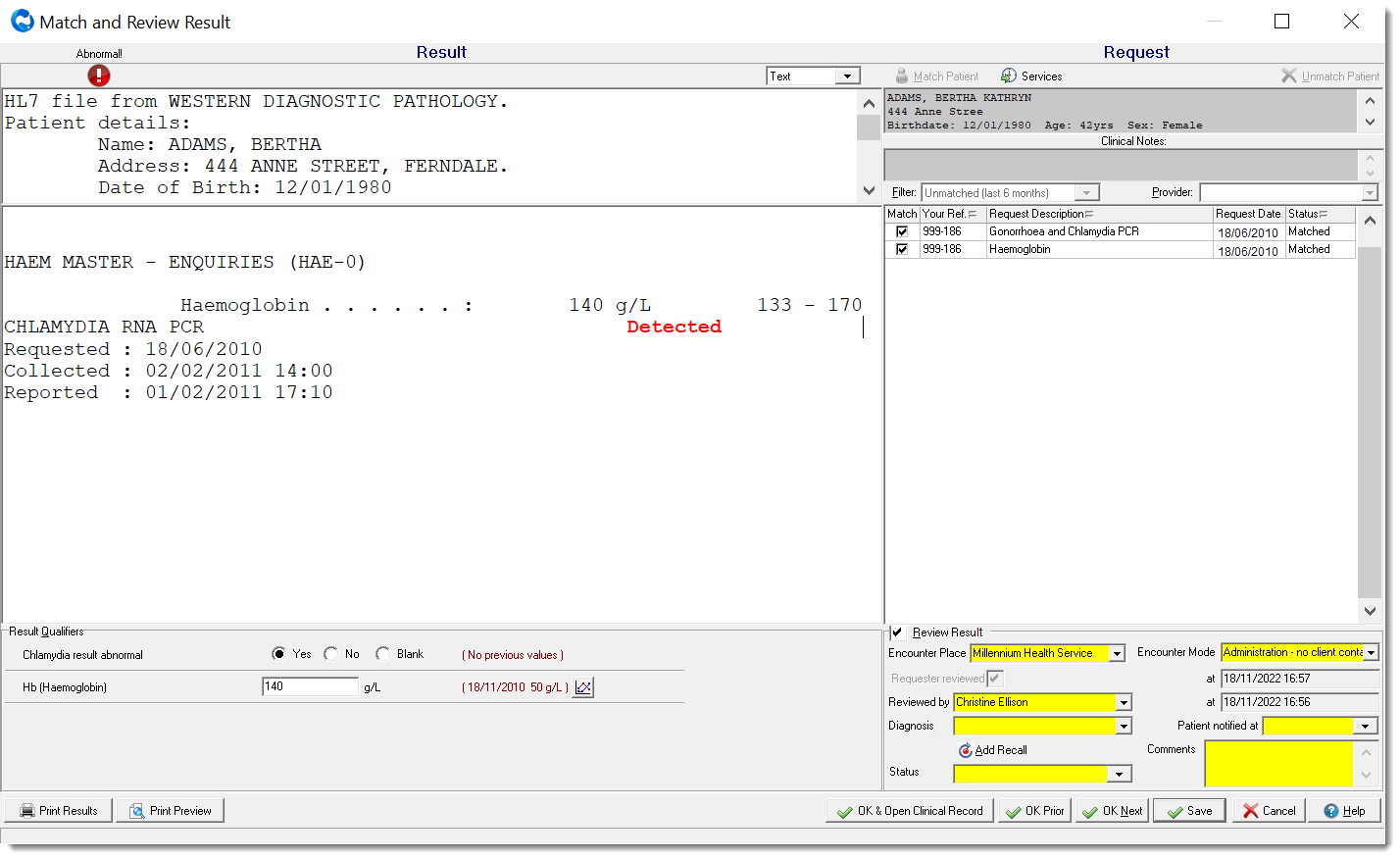
If a time zone is provided in the result sent by the lab, the time is converted to local time. If no time zone is provided, the time included in the result is used verbatim.
-
If the result has been matched to the correct patient, go to step 4. Otherwise,
match the result to a patient:
- In the Match and Review Result window, click
 Match Patient.
 - In the Select Patient window, search for the patient to whom the result might apply by name, date of birth or Medicare number. If you cannot find the patient, add the patient to the database as a Transient Patient so that you can review the result. Click New Patient and add the patient as normal. The patient details are inserted automatically into the pathology results
- In the Match and Review Result window, click
-
Review the results, either:
- Continue to review the results here:
- Set Match.
- Set Review Result.
- Check that your encounter place and mode are correct.
- If you requested the investigation, set Requester reviewed, otherwise, from the Reviewed by list, select your name. A date is added to the appropriate field and the result changes status to Reviewed.
- If the investigation results in a diagnosis, from the Diagnosis list, select a diagnosis.
- If the patient has been notified of the results, in the Patient notified at field, add the date when they were notified.
- To add a recall for the patient, click
 Add Recall
and complete the recall information. See Recalls for more
information.
Add Recall
and complete the recall information. See Recalls for more
information. - The status of the investigation result is imported from the pathology file, but you can also update the status manually. To update the status, from the Status list, select the required status.
- In the Comments field, enter any further information.
- Review the results in the patient's clinical record instead:
- Set Match.
- Click OK & Open Clinical Record.
- Complete steps b-i above.
- Continue to review the results here:
-
If you want to
check when the patient's last or next appointment is, click
 Services.
Tip:You can also book another appointment for the patient: in the Service List window displayed, click
Services.
Tip:You can also book another appointment for the patient: in the Service List window displayed, click Book Appointment.
After a result is matched to a patient, you can review it in the patient's clinical record.

- To display a summary of the investigation in the right pane, select it in the result list in the left pane
- To open a result, double-click Investigation Result or right-click the result and select Edit Investigation Result
If you didn't select all requests associated with the result, requests that are not marked as having had the result received will stay on the report for outstanding requests, .
You can short list a number of clinical items recallable from the Match and Review Result window. Ask your administrator to assign the keyword $IxRecall to the required items.