
Clinical Record Banner
A patient's personal details, MyMedicare status, any actions required and important clinical information are included in the banner of their clinical record.
The patient banner is displayed at the top of all windows in a patient's clinical record.

It includes:
- Patient details summary, derived from the patient's biographics:
- Patient's full name
- Age
- Date of birth
- Sex
- Communicare patient ID
- Gender
- Pronouns
- Medical Record Number (where provided and configured)
- Health Care Homes Status (where enabled)
Where no value is recorded for date of birth, sex, gender or pronouns, Not recorded is displayed.
- Action required banner - important clinical information and actions required.
 Tip:Click any link to go to the appropriate section in the clinical window.
MyMedicare status
If Services Australia integration has been enabled for Communicare, a patient's registration status for MyMedicare with your practice today is displayed in the clinical record banner, MyMedicare field.
Tip:
Hover your mouse over the MyMedicare field to
display more information about the status.
The MyMedicare status may be one of:
 - the patient is registered for MyMedicare with your practice
today. The patient's preferred practitioner and the schemes in which they
are enrolled are listed.
- the patient is registered for MyMedicare with your practice
today. The patient's preferred practitioner and the schemes in which they
are enrolled are listed. - the patient's registration for MyMedicare with your practice
today is pending, awaiting Services Australia.
- the patient's registration for MyMedicare with your practice
today is pending, awaiting Services Australia. - the patient is not registered for MyMedicare with your practice
today, but the patient may be eligible to do so. If they are eligible, ask
your patient if they want to register for MyMedicare with your practice and
direct them to https://www.health.gov.au/our-work/mymedicare/patients#how-to-register.
- the patient is not registered for MyMedicare with your practice
today, but the patient may be eligible to do so. If they are eligible, ask
your patient if they want to register for MyMedicare with your practice and
direct them to https://www.health.gov.au/our-work/mymedicare/patients#how-to-register. - unknown status. Hover over the link to display the error message
returned from Services Australia or Communicare. If the MyMedicare status
has previously been displayed, there may be a network problem. If the
MyMedicare status has never worked, ask your Communicare Administrator to
check your Organisation Site ID and set up. For more information, see MyMedicare.
- unknown status. Hover over the link to display the error message
returned from Services Australia or Communicare. If the MyMedicare status
has previously been displayed, there may be a network problem. If the
MyMedicare status has never worked, ask your Communicare Administrator to
check your Organisation Site ID and set up. For more information, see MyMedicare.
Actions list
The banner contains links to the following information:
- NCSR - a count indicates that alerts exist for this patient in the NCSR hub. Grey indicates no alerts exist, patient not found or that the Medicare provider number doesn't exist. For more information, see Patient banner.
- Verbal Orders - a count of active, unreviewed verbal orders. This link is visible only if the Medications Management module is enabled.
- Documents - a count of unreviewed documents. This link is visible only if you belong to a user group with the Electronic Documents system right.
- Immunisations - a grey icon indicates that
immunisations are recorded in Communicare for this patient. An
 exclamation mark (!) on an amber background
indicates that there is no immunisation information recorded for this
patient.
exclamation mark (!) on an amber background
indicates that there is no immunisation information recorded for this
patient. - Results - a count of unreviewed pathology and radiology results. Grey indicates that there are no unreviewed results. Click the link to go to the tab which lists the unreviewed results. Double-click a result to review it. This link is visible only if you belong to a user group with the Investigations system right.
The background of the link icons are colour-coded:
 Red - indicates that attention is required. For example, if there
are unreviewed investigations for this patient.
Red - indicates that attention is required. For example, if there
are unreviewed investigations for this patient. Grey - indicates that no action is required. For example, the
documents link is grey when there are no unreviewed documents in the system
for this patient.
Grey - indicates that no action is required. For example, the
documents link is grey when there are no unreviewed documents in the system
for this patient. Grey with exclamation icon - indicates that no action is required
but information is available. Hover over the icon to display further
information. For example, this patient has no immunisations listed in
Communicare.
Grey with exclamation icon - indicates that no action is required
but information is available. Hover over the icon to display further
information. For example, this patient has no immunisations listed in
Communicare. - Amber with exclamation icon - indicates that no information is
available but no action is required.
Clinical information
The right section of the banner displays important clinical information:
 Pregnancy - if a patient is pregnant and the pregnancy has been
recorded on the Obstetrics tab, the pregnancy panel is
displayed with a yellow background. The panel shows the gestation of the
pregnancy. Click to go to the Current Pregnancy tab and
view the obstetrics summary. For more information about the gestation
displayed, see Gestation calculation.
Pregnancy - if a patient is pregnant and the pregnancy has been
recorded on the Obstetrics tab, the pregnancy panel is
displayed with a yellow background. The panel shows the gestation of the
pregnancy. Click to go to the Current Pregnancy tab and
view the obstetrics summary. For more information about the gestation
displayed, see Gestation calculation. Medical alerts - a panel indicating any medical alerts that apply to
the patient. If present, click to go to the Alerts and Other
Information pane on the Main Summary.
Otherwise, No Medical Alerts is displayed.
Medical alerts - a panel indicating any medical alerts that apply to
the patient. If present, click to go to the Alerts and Other
Information pane on the Main Summary.
Otherwise, No Medical Alerts is displayed.- Adverse reactions - a panel listing as many allergies and adverse reactions
as possible. Click to go to the Adverse Reaction
Summary pane on the Main Summary. The
adverse reactions panel is displayed in one of the following ways:
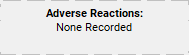 - no allergies or adverse reactions have been recorded for
this patient. You will be prompted to record adverse reactions when
prescribing.
- no allergies or adverse reactions have been recorded for
this patient. You will be prompted to record adverse reactions when
prescribing. - a clinician has determined that this patient does not
have any allergies or had any adverse reactions and has set
Nil Known in the Adverse
Reaction Summary.
- a clinician has determined that this patient does not
have any allergies or had any adverse reactions and has set
Nil Known in the Adverse
Reaction Summary. - allergies or adverse reactions are included in this
patient's clinical record.
- allergies or adverse reactions are included in this
patient's clinical record.