
Supply Medication Requests
After a medication request has been fulfilled by an external pharmacy, you can record when a patient picks up their medication.
If you want to toggle between showing all medications and hiding medications included in a request for which there is no inventory, in System Parameters, enable Show Out of Stock Inventory.
For more information, see System Parameters - Prescription Forms.
After you have received patient-specific inventory from the pharmacy, you can supply it to the patient.
-
Select
 Medication >
  Administer & Supply.
-
In the Requested medications section of the
Administer and Supply Medication window, expand the
medication or DAA pack that you want to supply to the patient from their
fulfilled inventory.
Tip:Ensure that the Request status is Active.
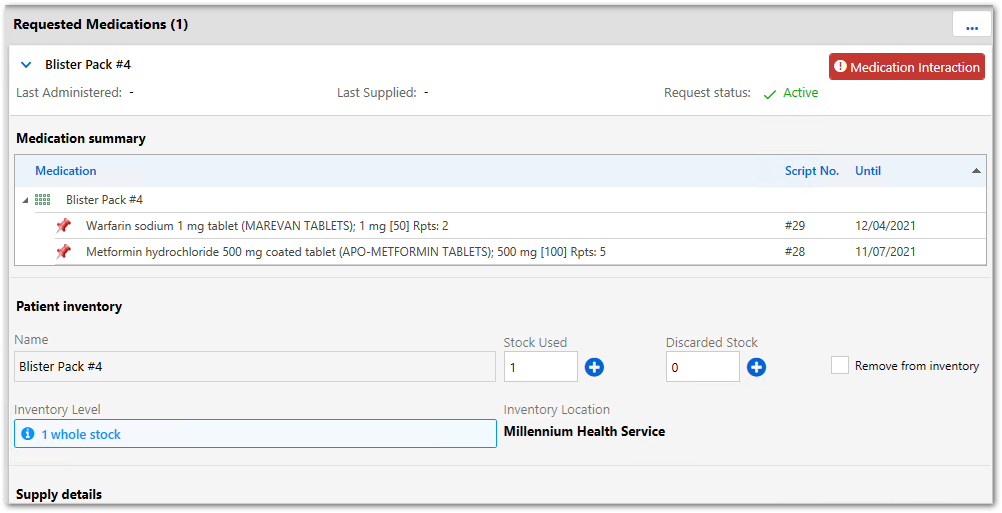
Note:If any medications included in the patient inventory have been stopped or deleted, the Request status is changed to Stopped or Cancelled, and in the medication list, a warning banner is displayed and the affected medication is prefixed with <Stopped date> or <Deleted date>.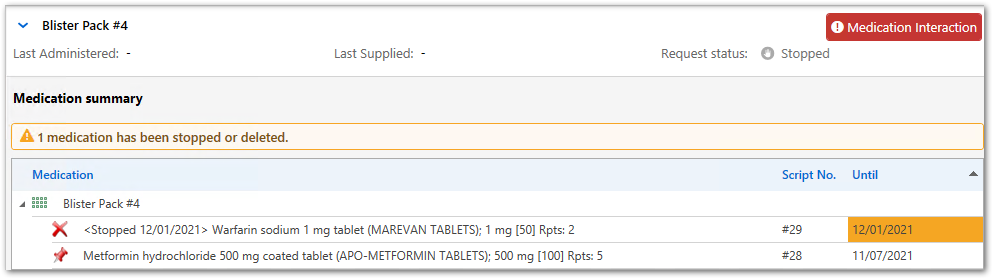
-
In the Patient inventory section, in the
Stock Used field, enter the number of individual
stock items supplied, or click
 Increment.
Tip:The amount of medication listed in the Inventory Level is controlled by the inventory levels recorded in the Qty in stock field in the draft consolidated order. For more information, see Create a draft consolidated order.
Increment.
Tip:The amount of medication listed in the Inventory Level is controlled by the inventory levels recorded in the Qty in stock field in the draft consolidated order. For more information, see Create a draft consolidated order.If the ability to hide inventory with no stock is enabled for your site, to show all medication requests, click
 Options and select Show out of stock
inventory. If this option is not selected, only those
medications that have stock or that have been updated in the current service
are displayed.
Options and select Show out of stock
inventory. If this option is not selected, only those
medications that have stock or that have been updated in the current service
are displayed.The Inventory Level is decremented by the number of stock items supplied.
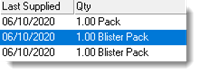

 Supply Medication icon, the date, and is prefixed with
the word <Supply>. For example:
Supply Medication icon, the date, and is prefixed with
the word <Supply>. For example: 
- By date, prefixed with <Supply>
- On the Medication topic tab, prefixed with <Supply>
- On the Rx - Supply class tab, prefixed with <Inventory>
Removing patient-specific inventory
-
Select Medication > Administer & Supply.
-
In the Patient inventory section, in the
Discarded Stock field, enter the number of
individual stock items that you are discarding, or click Increment.
The Inventory Level is decremented by the number of stock items you enter.
If you removed the medication or DAA type from the inventory record, you can no longer record administration or supply for that medication.
Discarded stock is not recorded in the Progress Notes or Detail tab.