
Send bulk SMS messages manually
In Communicare V21.1 and later, you can manually send SMS messages to multiple recipients using Telstra Health's SMS gateway (TH Messaging).
- SMS Appointment Reminders - shows all patients with appointments for a selected encounter place between two dates. To send reminders for a single day, enter that date in both the First date to report and the Last date to report fields. Appointments that have been cancelled or started are excluded.
- SMS Patient Group Members - shows all patients belonging to the selected patient group. Enter a message of up to 160 characters.
- Patients where Preferred Contact is set to No Contact.
- Deceased patients
- Fictitious patients
-
In the Select an SMS query window, select the required
query, for example, SMS Appointment Reminders, and click
 Preview SMS.
-
In the confirmation window, click Yes.
-
In the Send SMS Messages window, all patients who meet
the search criteria are listed. Select all patients to whom you want to send an
SMS.
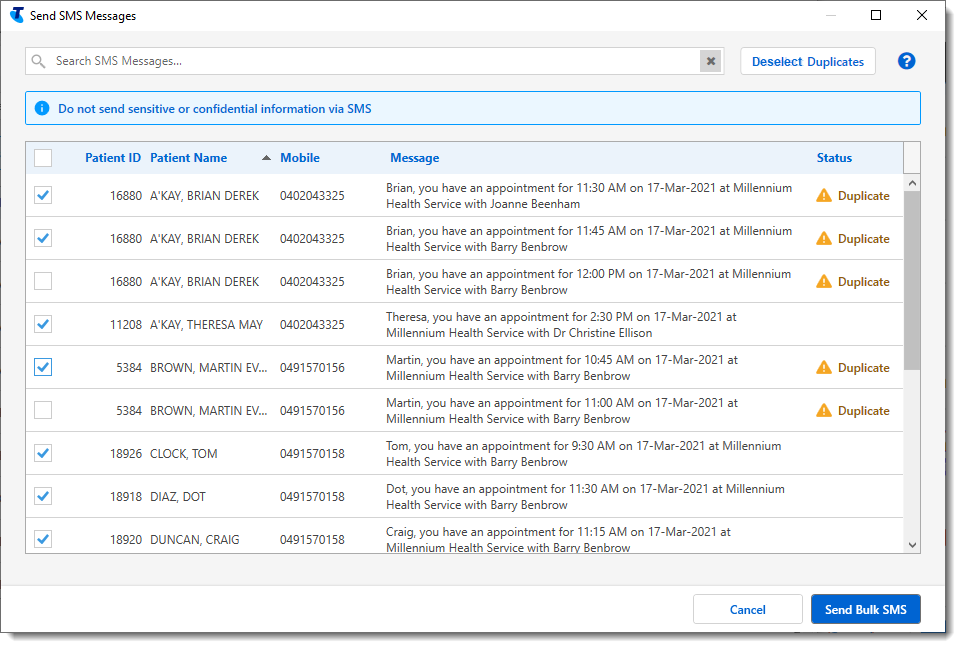
Patients can be listed multiple times. For example, if they have multiple appointments at an encounter place with one provider or separate appointments with several providers. If there is potentially more than one SMS message for a patient,
 Duplicate is displayed in the
Status column. Tip:
Duplicate is displayed in the
Status column. Tip:- To select all patients, set the selection box in the heading.
- For a patient with duplicates, to automatically select only the first listed message, click Deselect Duplicates. If a patient has appointments with separate providers, only the first appointment for the day is selected. If you want to send multiple reminders, one for each provider, also select these messages in the list.
- To find a particular patient, in the Search SMS Messages field, enter the patient ID, name or phone number. Results are refined as you type.
A new SMS Message clinical item is created in the
clinical record of each recipient, on the Detail tab. The
status of the SMS message is displayed in the SMS Send Status
field, initially with a status of Pending. If a phone number is invalid, the following message is
displayed: Send Failed (Phone number is not valid).
The SMS messages are sent when the CCareQueue_Communications service next runs. The message status in each clinical item is updated automatically when confirmation is received that the message has been sent or has failed.
Details of the SMS batch are displayed in the .