
Submit a Claim to Medicare
If your health service is integrated with Medicare, you can submit an electronic claim either when you close a service if you are the provider, or later if you are a receptionist or claims manager.
To submit Medicare claims, the Electronic Claims module must be enabled for your health service and you must belong to a user group that has the Billing system right.
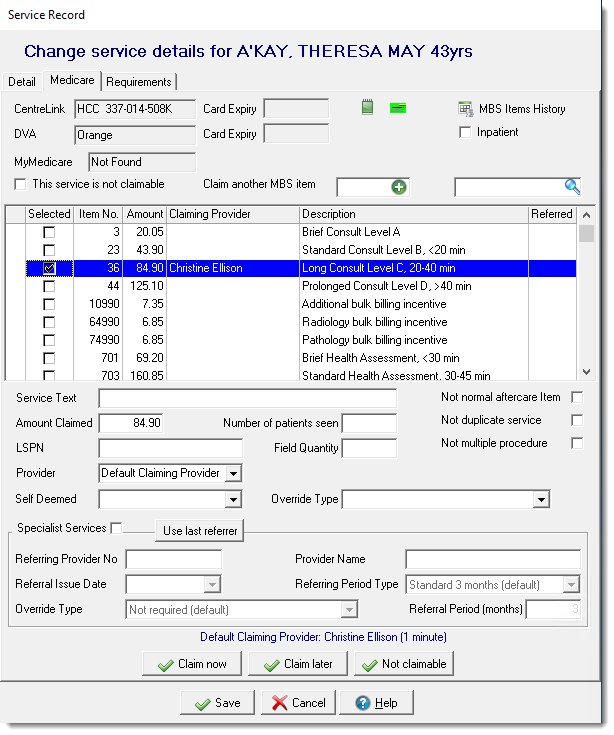
Select an MBS item and then add the details for that specific item. You can set a different provider for each item.
If the service is not claimable, set This service is not
claimable and click  Save, or click Not claimable.
-
Open the Service Record window.
- If you are the provider and you are submitting the Medicare claim:
- In the Clinical Record, click
 Close.
 - Click Yes - This service is now complete or No - Patient will see another provider.
- In the Clinical Record, click
- If you are the receptionist:
- Click
 Service Recording.
 - In the Service Recording window, double-click the patient for whom you want to submit a claim.
- Click
 Edit Service Details.
- Click
- If you are the provider and you are submitting the Medicare claim:
-
In the Service Record window, on the
Medicare tab, review the patient's Medicare, DVA and
MyMedicare details.
 For patients with a valid Medicare card or whose details have been verified with Services Australia but with suggestions, a
 Medicare icon is displayed. If Medicare details are incomplete, expired
or missing, to update the patient's details in Patient Biographics, click
Medicare icon is displayed. If Medicare details are incomplete, expired
or missing, to update the patient's details in Patient Biographics, click  Incorrect Medicare Details. You can submit a claim only for patients
whose Medicare details are complete.
Incorrect Medicare Details. You can submit a claim only for patients
whose Medicare details are complete. -
Review the information that relates to all items claimed.
- To view or edit administration notes related to the claim, click
 Admin notes.Tip:This is useful for doctors to add claim notes for the claims administrator.
 - If enabled, to claim the items as an Inpatient Service, select Inpatient.
- To view or edit administration notes related to the claim, click
-
To display previous items that have been marked for claiming for this patient,
whether they have been paid or not, click
 MBS Items History.
-
In the list of items, select an item. Most common MBS items are listed.
- If the item you want to claim is not listed, either:
- If you know the number of an item which is not listed, in the
Claim another MBS item field, enter
the number and click
 Add.
Add. - Search for an item:
- Click
 Search.
 - In the Search MBS Items field, enter a search term. For example, pregnancy.
- In the list, select an item and click Select. The item is added to the list in the Service Record window and is selected.
- Click
- If you know the number of an item which is not listed, in the
Claim another MBS item field, enter
the number and click
- If you want to claim an item more than once, right-click the item and select Add this MBS item again.
- If you want to claim an item that does not have a simple fee (such as a home visit), right-click on the item and select Display the derived fee description for this MBS item. Using the description, fill in the details required (for example, amount claimed, number of patients seen, and so on).
- To add notes about the claim, click Admin Notes and enter your notes in the text field.
- If the item you want to claim is not listed, either:
-
Below the list of items, select the details that apply specifically to the
selected item:
- In the Amount Claimed field, if the amount you want to claim for this item is different to the default, enter the correct amount.
- If this item was provided by a location-specific provider, such as an x-ray machine, in the LSPN field, enter its number.
- From the Provider list, select the provider who is claiming the selected MBS item if different from the default provider listed above the buttons.
- You may need to provide other information specific to your health
service in the other optional fields, including:
- Service Text
- Number of patients seen
- Field Quantity
- Self Deemed
- Override Type
- If the item being claimed requires details of a referring provider,
select the item, select Specialist Services and
do one of the following: Note:Referral details are only included once for each claiming provider, so select only one item per specialist claiming provider.
- Complete the specialist's and the referral details
- To add details of the last referring provider for the patient, click Use last referrer.
- If the referral has a custom referral period, from the Referring Period Type, select Non-standard and enter the referral period in the Referral Period field.
- From the
Override Type list, select an
override type:
- Lost - do not provide any referring provider or referrer information.
- Emergency - do not provide any referring provider or referrer information.
- Hospital - also set Inpatient which includes the Hospital Facility ID for the encounter place in the claim. Do not provide any referring provider or referrer information.
- Referral Provider Details will be submitted - include a referring provider number and submit the referral separately.
Tip:If Specialist Services is selected and details are complete, a green dot is displayed in the
Referred column for the claim
item. If it has been selected, but some details are missing,
a
green dot is displayed in the
Referred column for the claim
item. If it has been selected, but some details are missing,
a  yellow dot is displayed.
- Complete the specialist's and the referral details
- You can also set whether an item is Not normal aftercare items, Not duplicate service or Not multiple procedure.
-
When you are confident that the items to claim are correct, click Claim now.
If you have MBS incentive items set for your organisation or encounter place, for eligible patients you are automatically prompted to also include the incentive item appropriate to your region. In the Confirm window, click Yes.
Service Recording window, select the patient to
show:- On the Detail tab, date, duration and priority of the service and patient and file IDs.
- On the Medicare tab, the items claimed. Next to each
Medicare item claimed there is an icon showing its status. These icons are
also displayed when you open the Service Record from
the Online Claiming window:
 Claim sent
or claim pending
Claim sent
or claim pending Claim rejected
 Claim
paid
Claim
paid
- On the
Post Assignment of Benefit tab, assignment of
benefit information:
- AoB Date - the date the DB4 Post Assignment form is printed.
- AoB Type - Post Assignment.
- Is the Assignor the Patient - select if the patient is responsible for assigning their post-assignment Medicare benefit to your health service before printing the DB4 form.
- Is AoB Form Printed - displays Yes after the DB4 Post Assignment form has been printed.
To print the DB4 Post Assignment claim form, click  Claim Form and in the Assignor
Patient window, click Yes if the patient is
responsible for assigning their post-assignment Medicare benefit to your health
service, otherwise click No.
Claim Form and in the Assignor
Patient window, click Yes if the patient is
responsible for assigning their post-assignment Medicare benefit to your health
service, otherwise click No.
Claims are sent at the interval and times configured in CCareQueue_ServicesAustralia. By default, claims are sent hourly, 12:00-1:00pm. For more information, see Services Australia interaction defaults.
Check details of Medicare claims on tab. For more information, see Bulk Bill Claims (Online Claiming).
If you submitted a claim incorrectly, correct it as quickly as possible. See Correcting Medicare Claims for more information.