Compose and preview the SMS message sent to patients when an SMS appointment reminder
template is run.
To set up and manage SMS reminder templates, the
Communications module must be enabled and you must
belong to a user group with the SMS Administration
system right.
First, specify the scheduling details on the Create Your
Template tab.
To compose an SMS template message:
-
Select .
-
In the SMS Appointment Reminder window, click
 New Template.
-
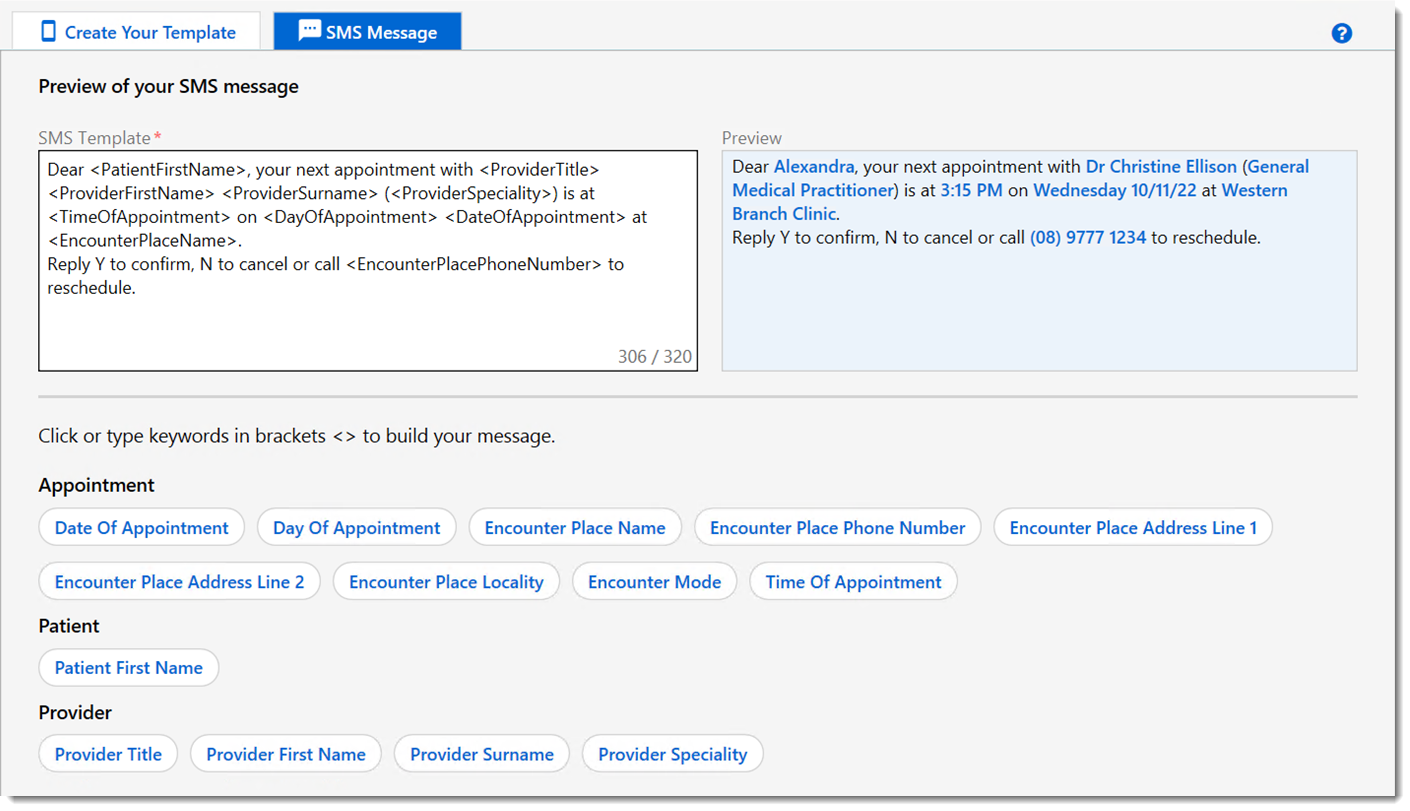
On the SMS Message tab, in the SMS
Template field, enter a message of up to 320 characters.
Typically your message will be a combination of free text and keywords. Keywords
are substituted with real details when the message is sent.
Tip: To add a keyword, click the keyword you want, or type it in
angle brackets < >. Keywords are case sensitive.
Remember to add spaces around your keywords. If the keyword you type is
incorrect, it won't be substituted with example text in the preview.
The word count is a combination of free text and the text of each keyword and
does not account for the text that will be substituted for the keywords. If
you exceed 320 characters in the SMS Template field
by adding a keyword, the count is highlighted in red.
-
Review the SMS message in the Preview field. The preview
is updated as you type or add keywords and shows example text substituted for
the keywords, highlighted in blue.
-
To check your template settings and enable the template, return to the
Create your template tab. For more information, see
Create SMS template.
When the template is next run at the scheduled time, this message is sent to the
patients who meet the criteria specified in the template.
Keywords are substituted with details from the patient record, the appointment book,
the provider settings and the organisation settings.